Introducing Where is ? by Where Apps

Keep it.
Find it.

Where did you put that document? When does the warranty expire? Where did you save that useful link? Keep the little details that matter in one easy-to-find place.

See how it worksExplore ideas

Free Android app • No account required for core features

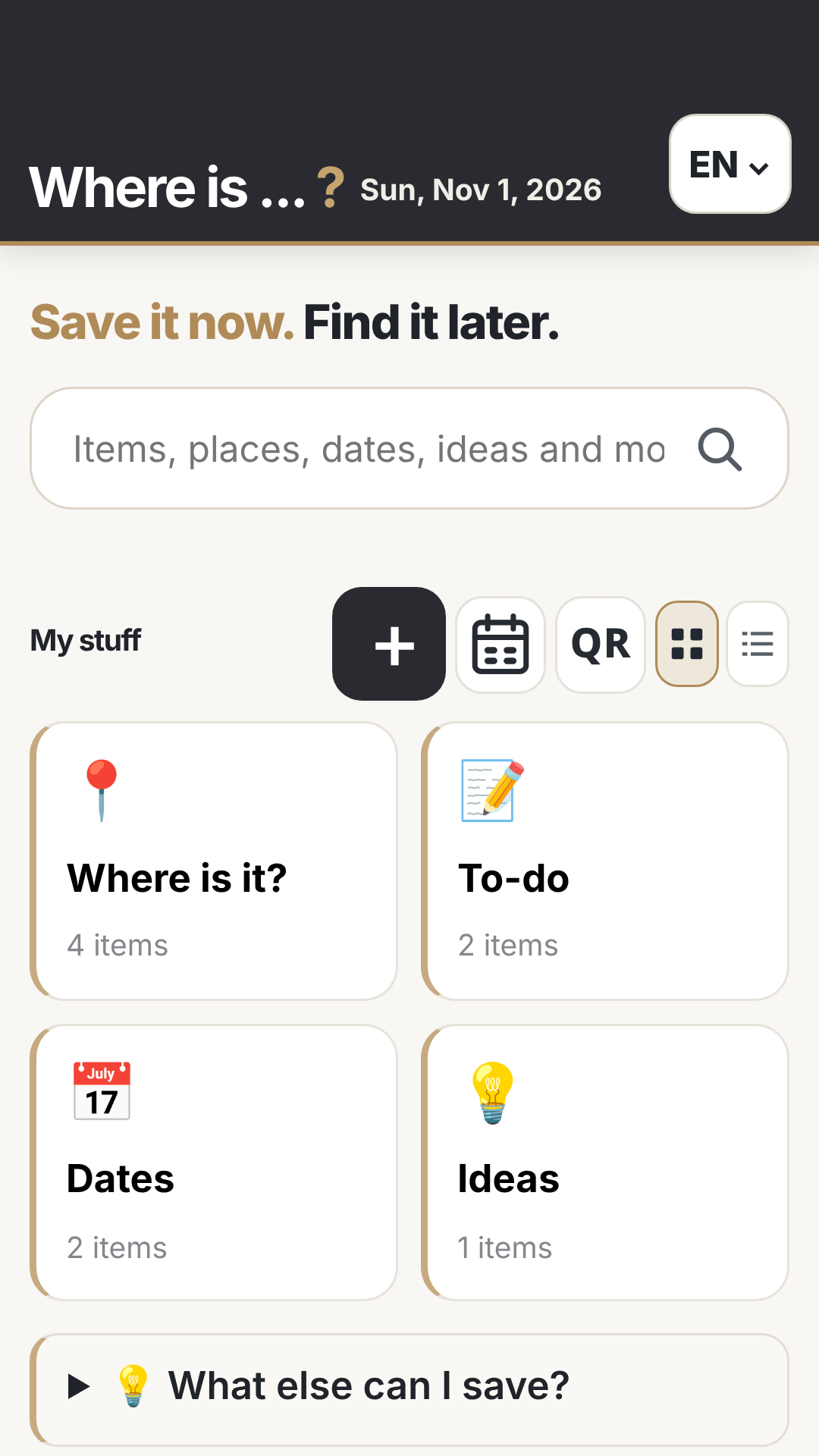
Where is ? home screen
For everyday little mysteries

You don't have to remember everything.

Where is ? keeps the details you want to find exactly when you need them.

01 / THINGS

“Where's the spare key?”

Create a “Home” group, add “Spare key,” and write down the exact location.

02 / DOCUMENTS

“When does the warranty expire?”

Save the appliance, the date, and a note. Find the details later through search or the calendar.

03 / IDEAS

“Where's that useful link?”

Save the URL in a “Useful links” group with a short explanation, so you can find it again.

Step-by-step guide

From your first entry to a full backup

Start with a real example. No account setup needed.

Home screen
Step 1

Organize information into groups

  1. Open the app.
  2. Create a group, such as “Home,” “Car,” or “Documents.”
  3. Choose a name you'll recognize easily.

Tip: Start with three to five groups instead of organizing everything at once.
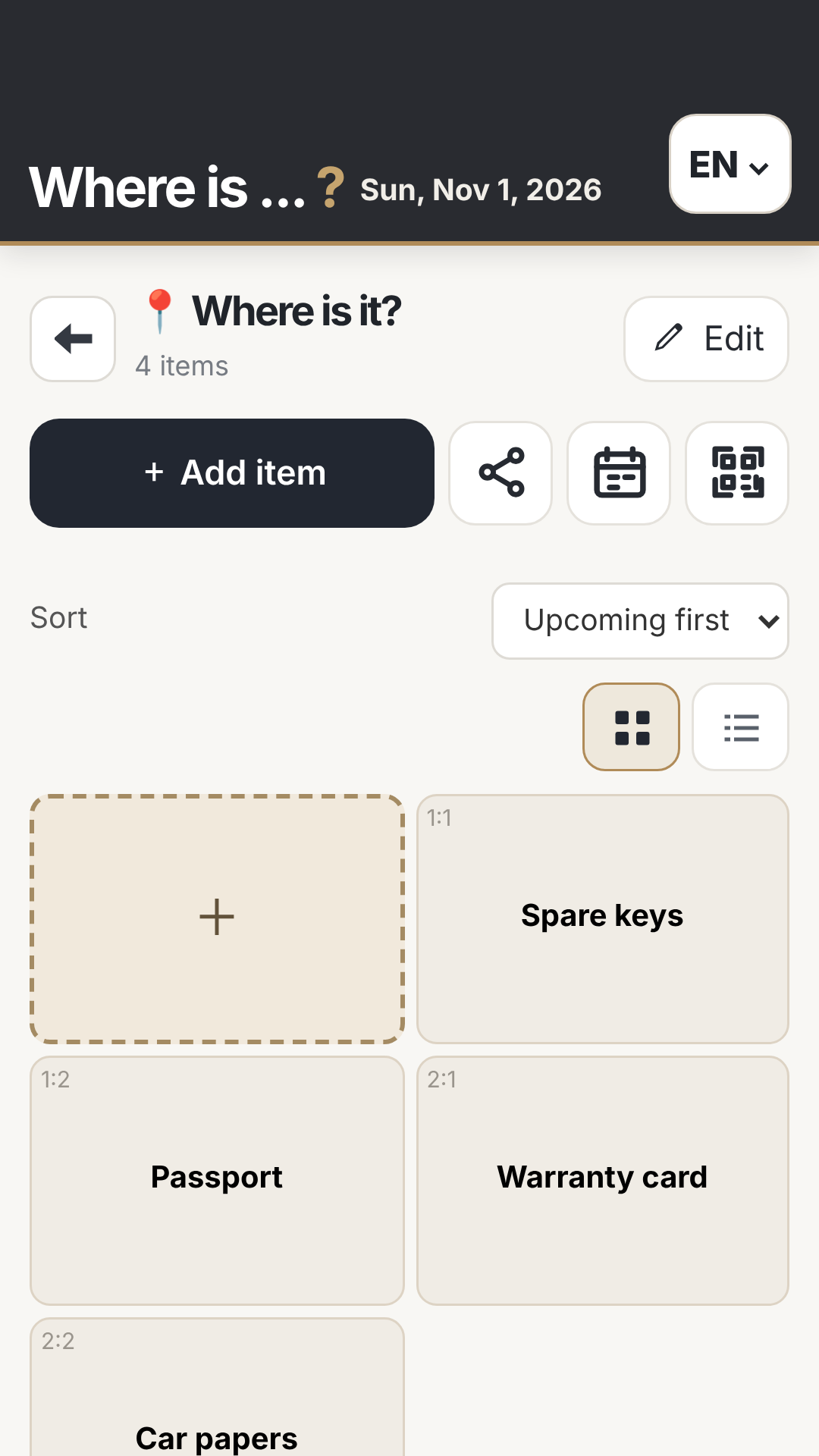
Group screen
Step 2

Add your first entry

  1. Open the relevant group.
  2. Add a new entry.
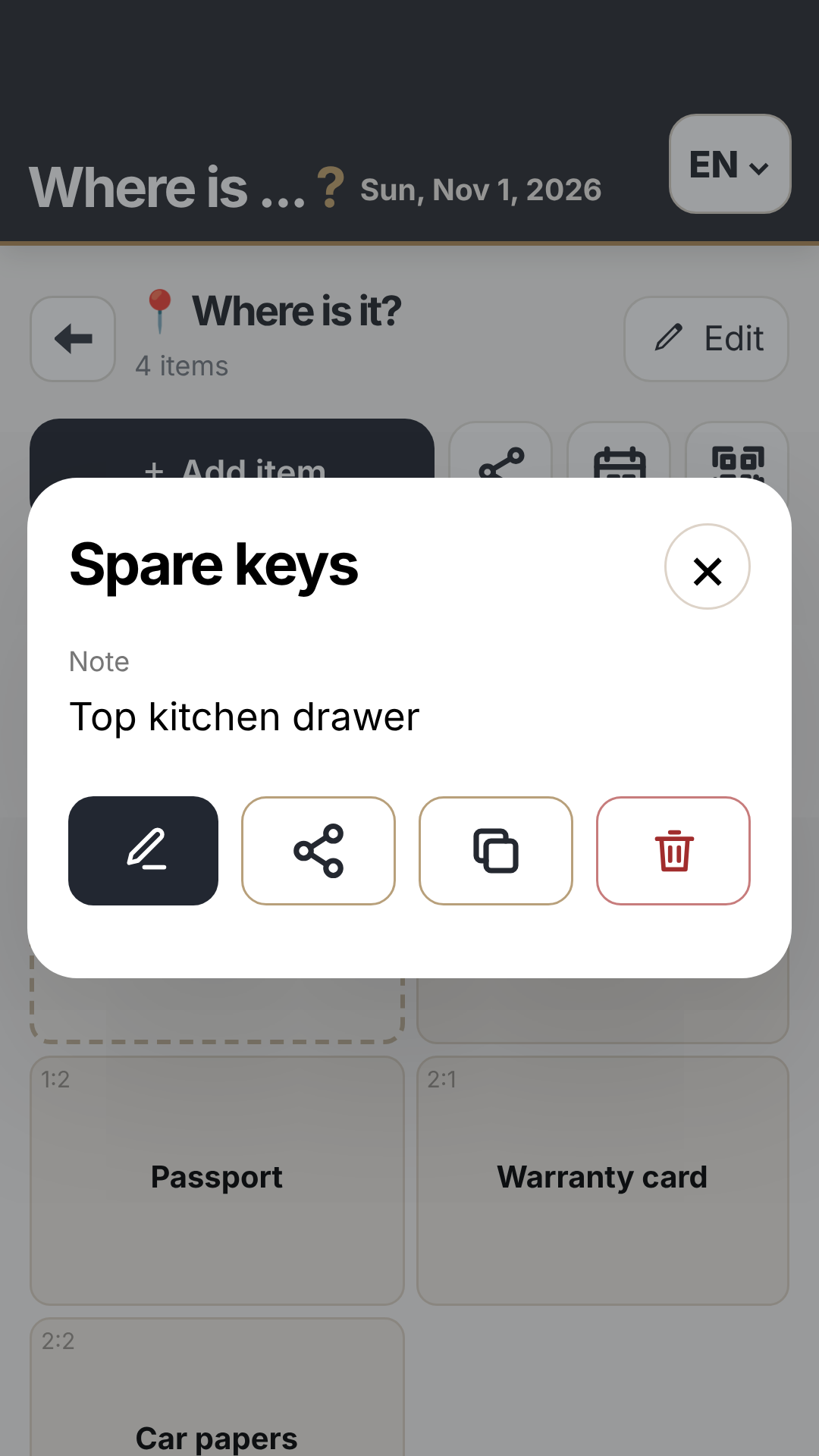
  3. Enter a title and note, such as “Spare key: top drawer.”

You can also add a date, a link, or other relevant details.

Entry screen
Step 3

Find it when you need it

  1. Open search in the app.
  2. Enter a word from the title or note.
  3. Open the matching entry to see its details.

Tip: Specific titles such as “Washing machine warranty” work better than “Document.”

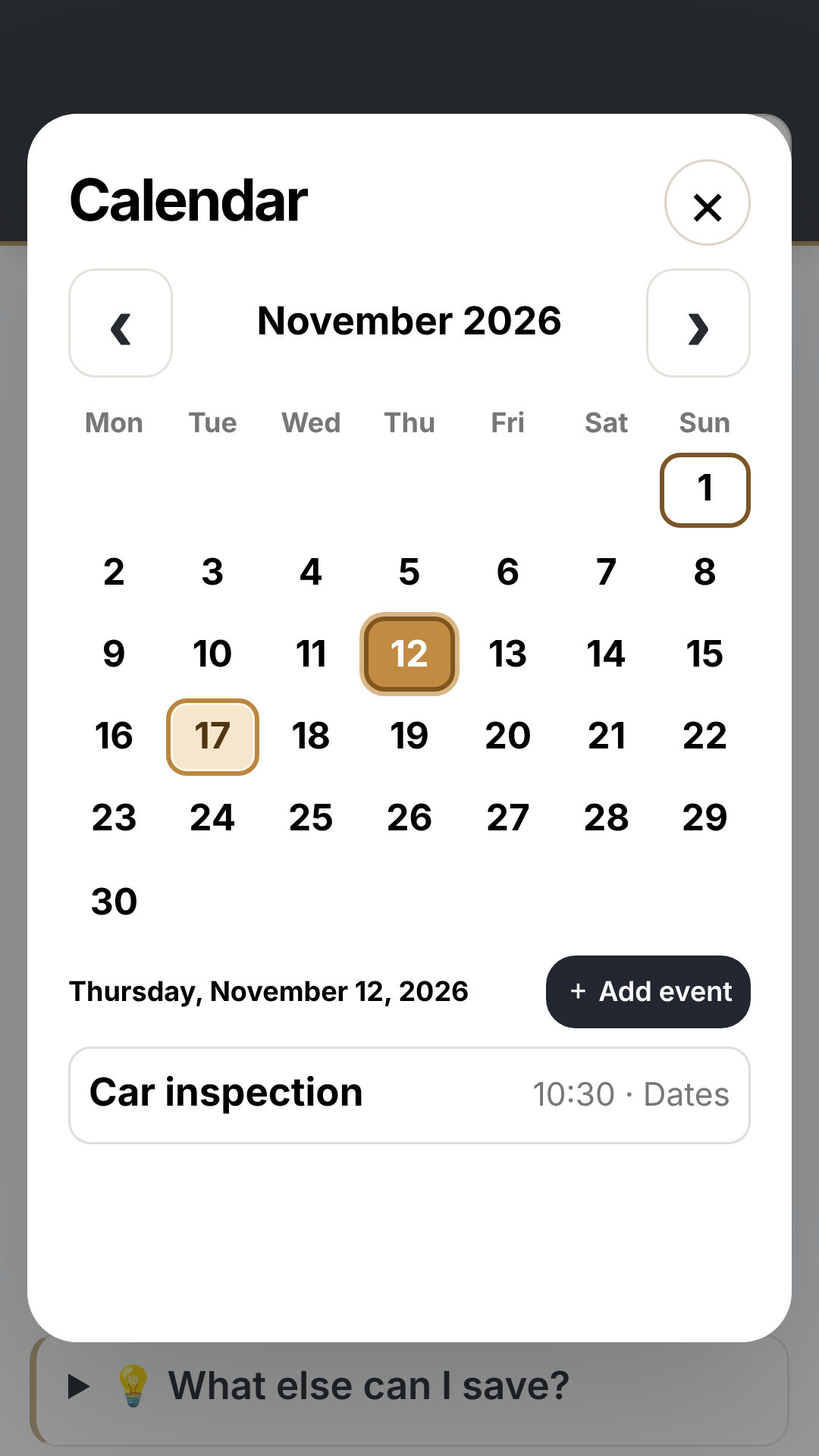
Calendar screen
Step 4

Keep track of important dates

  1. Add a date to an entry.
  2. Open the calendar.
  3. Review entries associated with that date.

Examples: warranty expiry, document renewal, or annual inspections.

Step 5

Scan barcodes and QR codes

  1. Choose the scanning feature.
  2. Allow camera access if Android asks.
  3. Point the camera at the code and review the result.
  4. For product barcodes, you can optionally open a Google search.

Google Search is an external service and only opens when you choose it.

Step 6

Back up your entries

  1. Open the backup feature.
  2. Export a backup and save it somewhere safe.
  3. Use the restore option if you need your entries again.

Make a fresh backup after important changes. Backup files may contain personal notes.

Short video series • Coming soon

One problem. One solution. 30 seconds.

Short tutorials recorded from the real app will appear here. The same vertical videos can be shared on TikTok, Instagram Reels, and YouTube Shorts.

🔑
Where's the
spare key?
Planned video · 25 sec

Save it in seconds

Problem → create an entry → find it with search.

📅
When does the
warranty expire?
Planned video · 30 sec

Important dates in one place

Add a date → open the calendar → find the details.

📦
Scan it.
Look it up.
Planned video · 25 sec

Barcodes and search

Scan → review the result → optionally search Google.

These are planned video topics, not finished videos. We'll replace them with actual app screen recordings.

Frequently asked questions

Quick answers

Do I need an account?

No. The core features of Where is ? don't require registration.

Where are my entries stored?

On your device. You can choose to export a backup. Read our privacy policy for details.

Is the app free?

Yes. Where is ? is planned as a free app without ads or subscriptions.

How can I move my entries to a new phone?

Export a backup and restore it on your new device. Store the backup securely.

Where can I download the app?

We're preparing its Google Play release. An official download link will appear here once it's available.

Get in touch

Have an idea, question, or issue?

Email us at where-is@abv.bg.

Where is ? is developed by Where Apps and is currently being prepared for Google Play.